You’ve mastered the installation and opened The Crawl Tool and it’s refusing to talk to you like a spoiled toddler. The Crawl Tool doesn’t lock you in to an AI provider – you can use local AI or an LLM on OpenRouter. But you need to tell it what. You need to set up an AI profile. You can actually set up multiple of these so you can change AI whenever you want, but let’s set up our first one for now.
Whether Local AI or OpenRouter, it all starts the same…
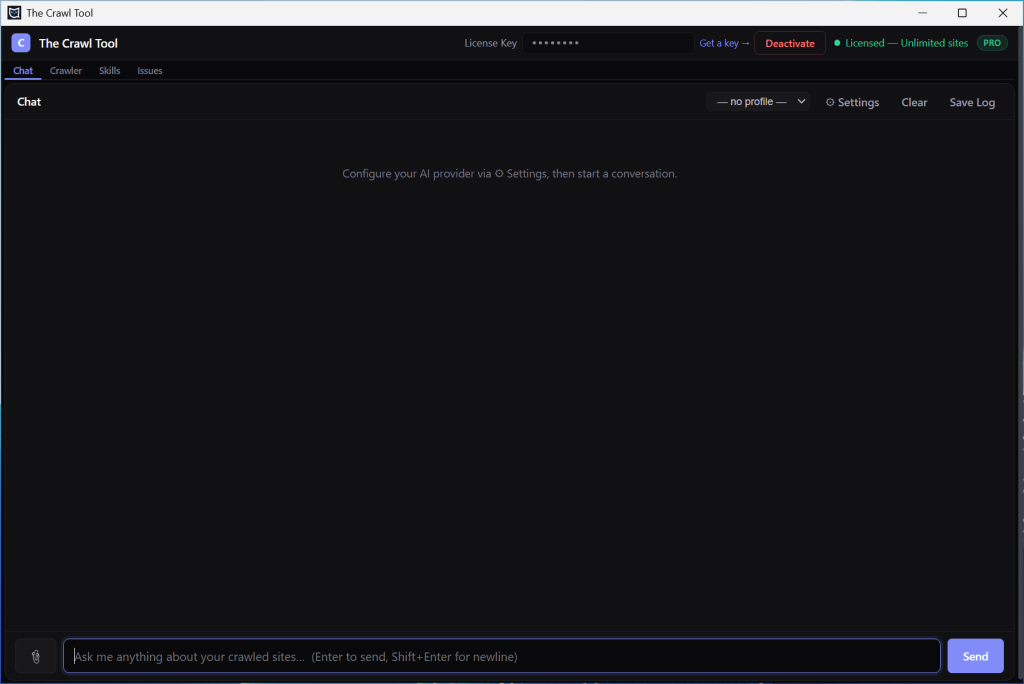
By clicking on the Settings button at the top right of the Chat tab, which will give you the following screen.
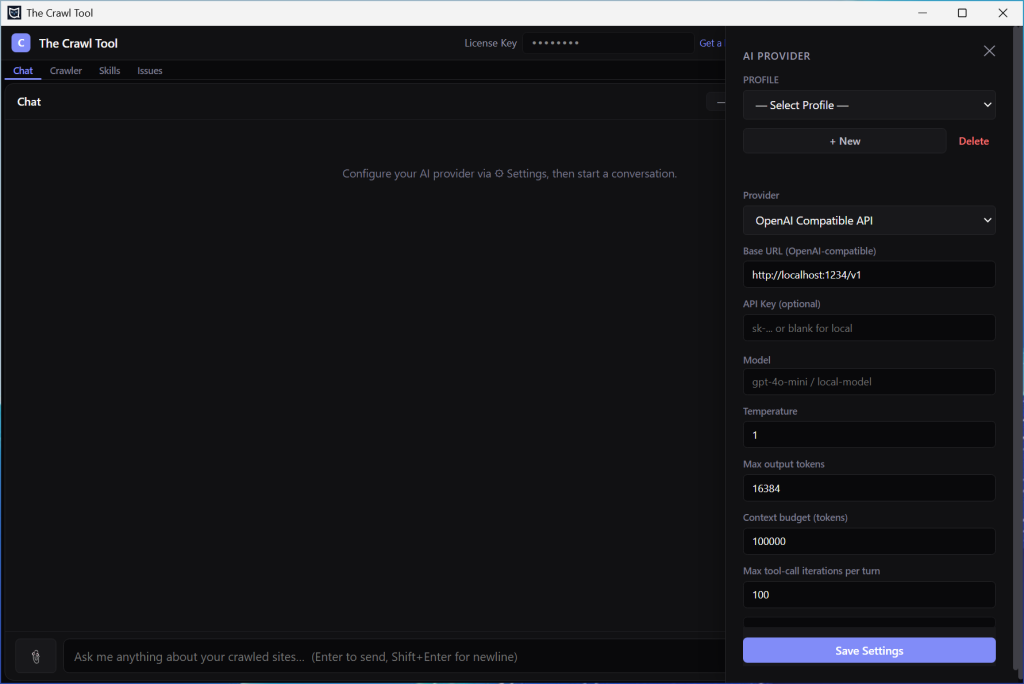
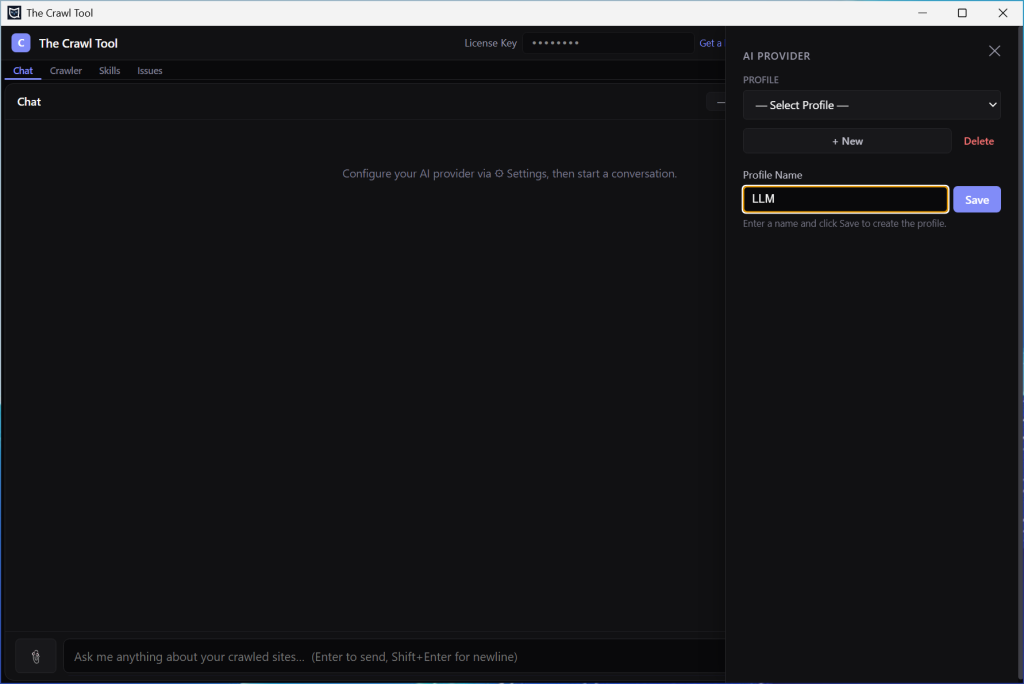
We want to start by setting up a profile to use. Click on the New button. Give it a name so you’ll know what profile this is (we just chose LLM here) and click the Save button.
It’ll immediately set up the profile and present you with some details to fill in. What you fill in here depends on how you want to set it up!
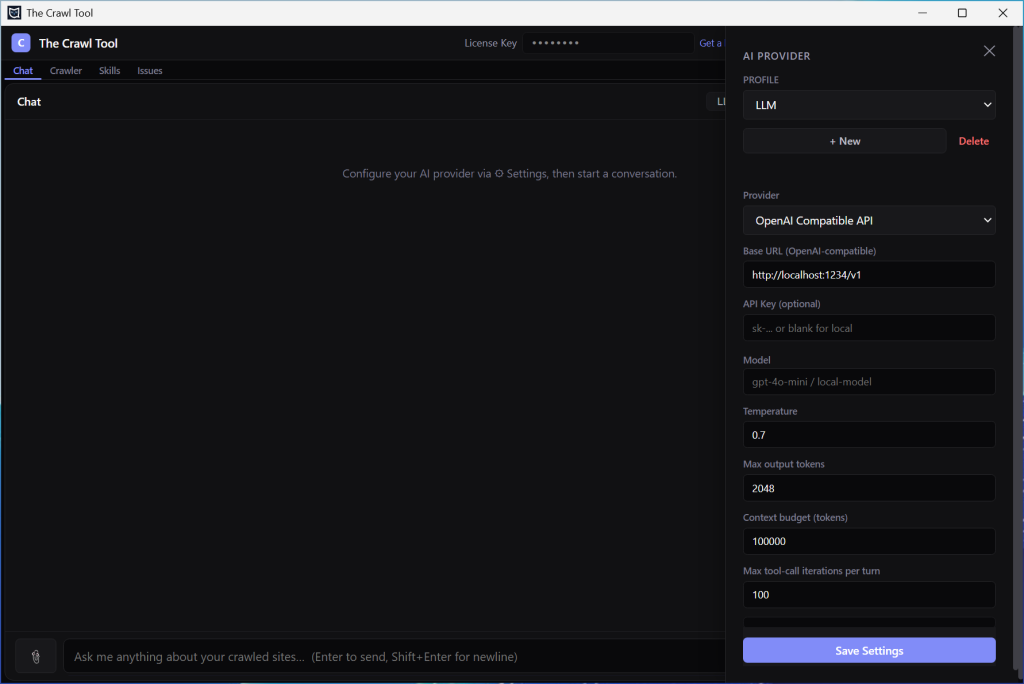
For Local AI
The default provider is “OpenAI Compatible API”. If you’re going to be running a local AI on something like LM Studio, Ollama, or llama.cpp then this is what you want. LM Studio doesn’t document this very well but you can turn on the server in the app, copy the url, key, and model settings here and click “Save Settings”. For Ollama, use http://localhost:11434/v1 as the URL, set the API key to “ollama”, enter the model, and click “Save Settings”. And if you’re using llama.cpp’s llama-server you probably don’t need us to tell you. Our tips here are to have your local AI running with as large a context window as possible.
For local AI after saving you can click the close (cross at the top right) and type something into the Chat to check it works.
OpenRouter
If you can’t run local AI because your computer is a hand-me-down from Shakespeare himself, don’t want to, or are simply looking to test things quickly then OpenRouter gives you access to a lot of LLM choices – many of them very cheap, some of them free. This is a great option for those circumstances. If you change the drop down box for Provider to OpenRouter then you get these options:
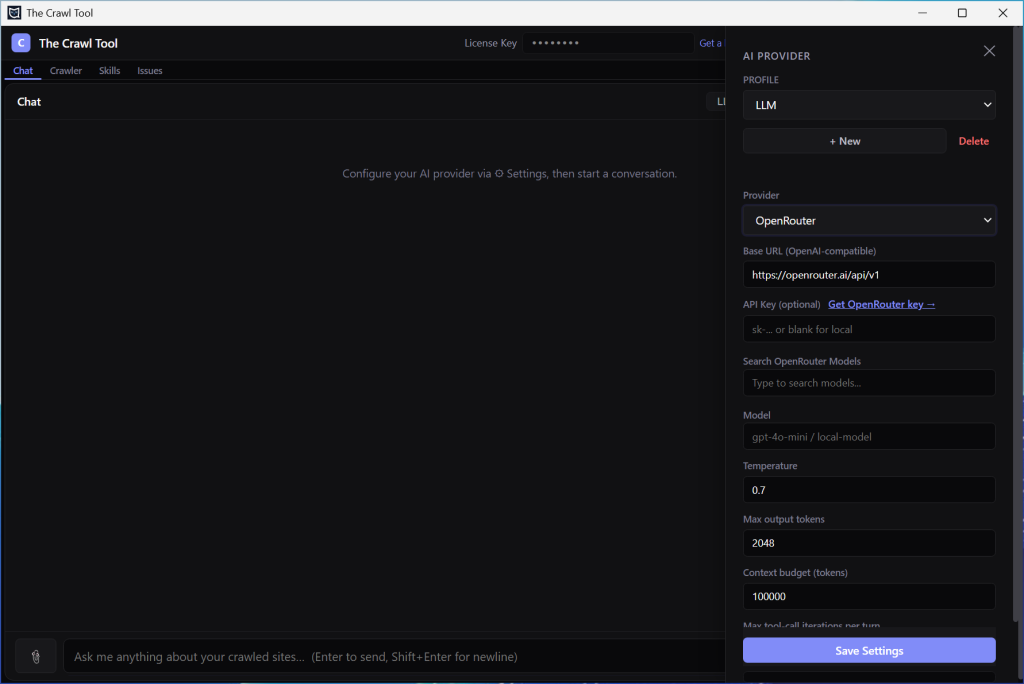
The URL is filled in for you. But you’re going to need a key. Click the Get OpenRouter key link.
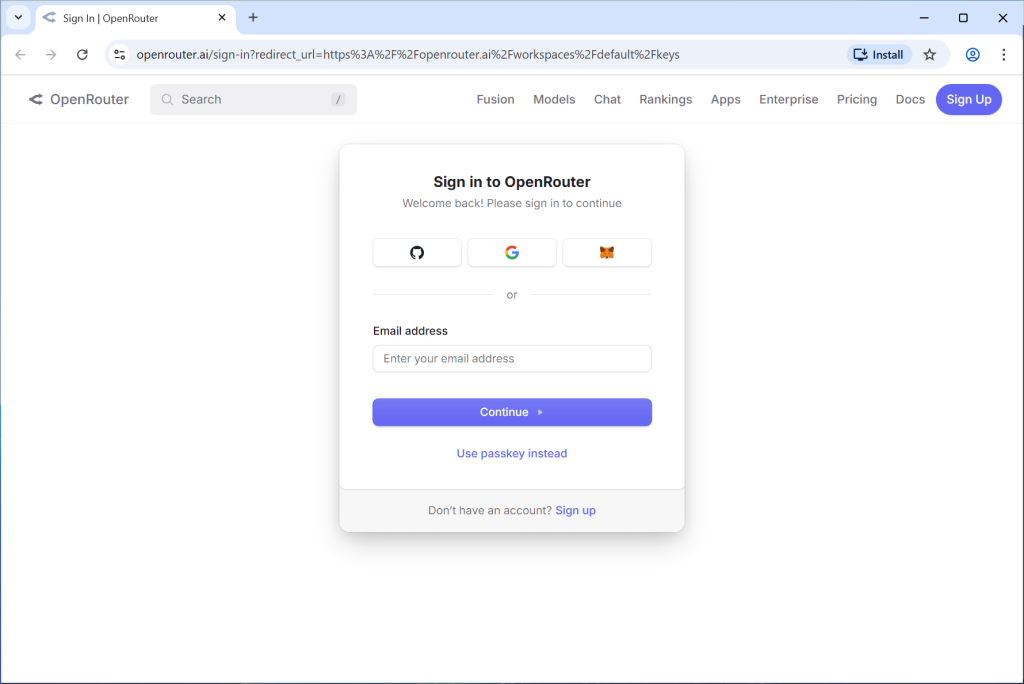
And if you don’t already have an account, click Sign up.
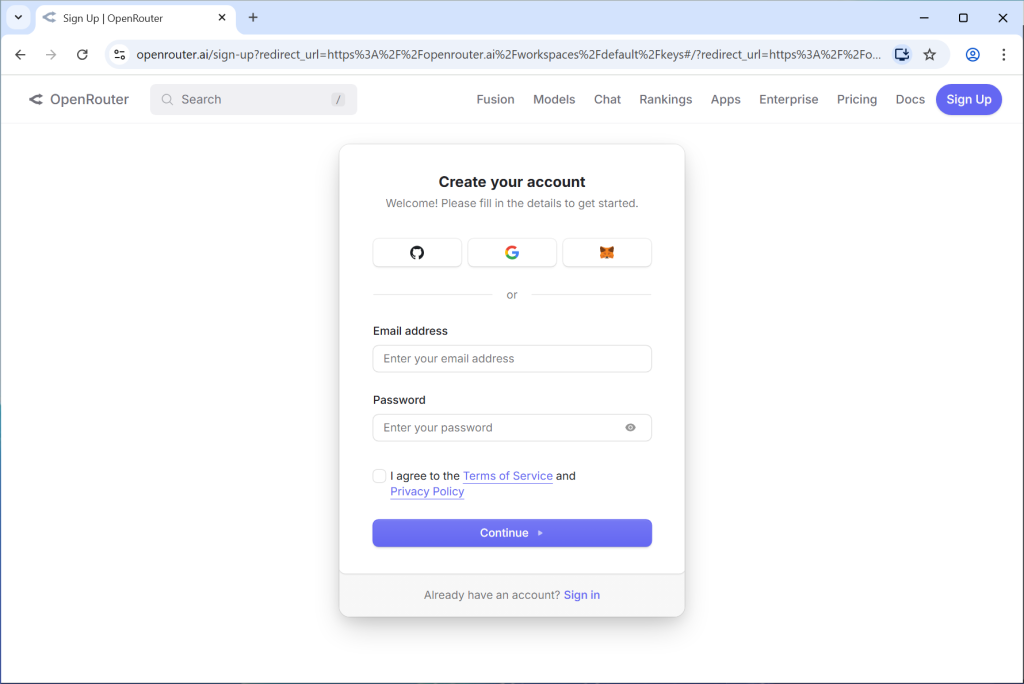
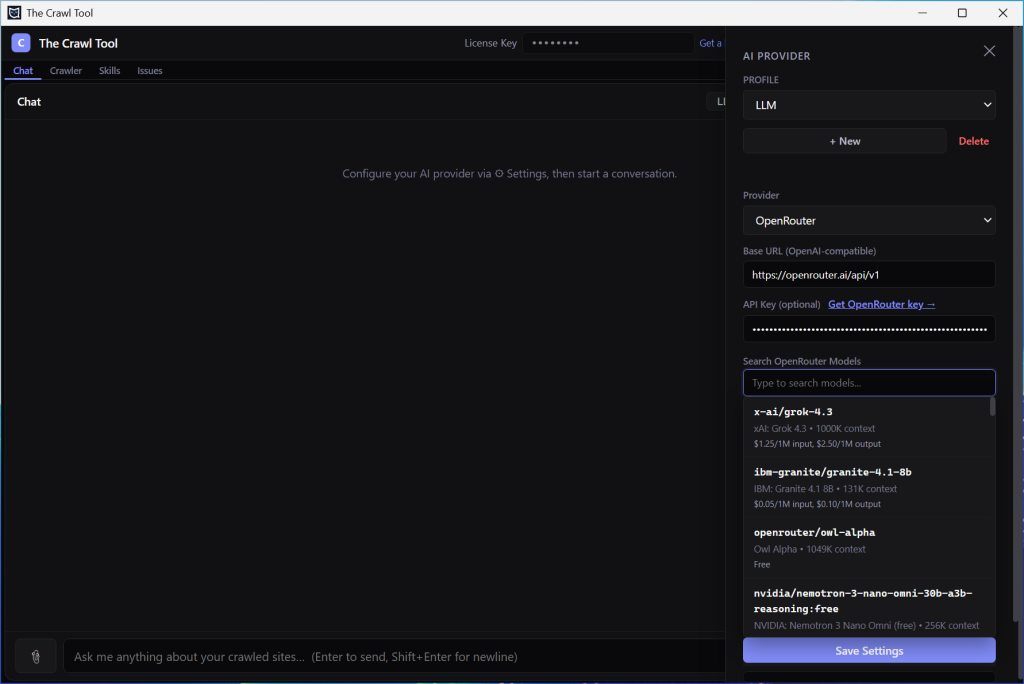
From there you’re going to have to make your own way because it could change. But follow the set up procedure and create yourself an API key (it’s free). Copy it to the API key field in The Crawl Tool.
Next we need to choose a model. You can go to the OpenRouter models screen to find a listing of available models.
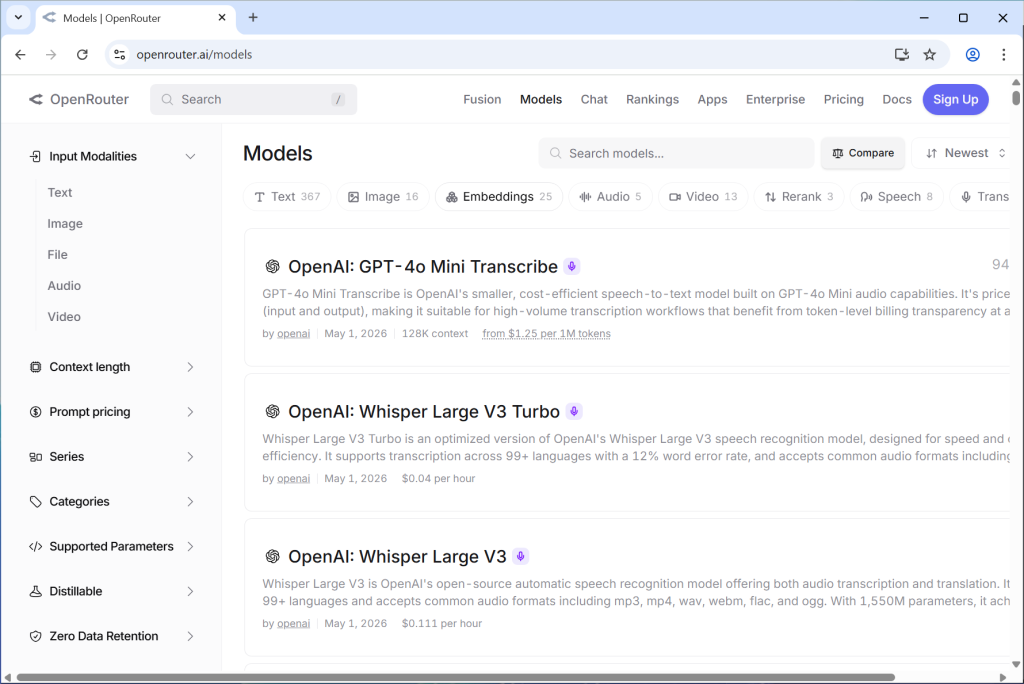
There are lots. You can filter them by text to get the ones we want. And from here you have options. If you want to use a commercial model then it makes sense to top your account up with a small amount of money, your LLM usage will be deducted from this. This gives you access to good, high quality models, that are often much cheaper than the US big models – for example DeepSeek v4 Flash is very cheap and very capable.
If your budget is smaller or you’re just testing then you want a free model. Click on Text, then open the prompt pricing on the left and drag the slider so the range is 0 to 0.
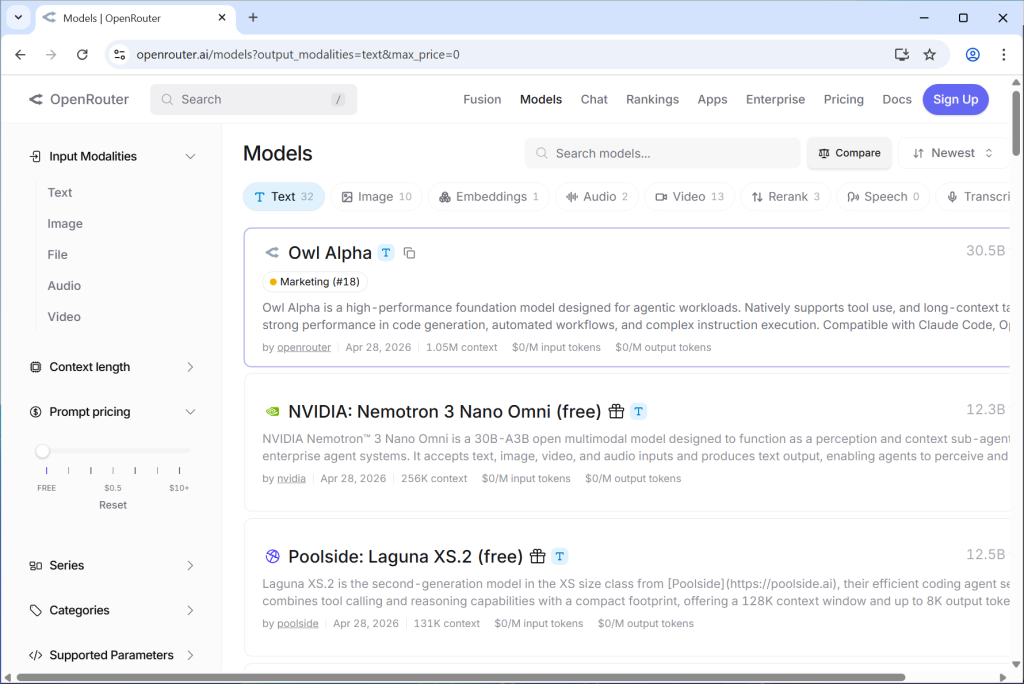
Models like Minimax M2.5 free have been free for quite a while. It is a good option to use one of these long lasting free options but keep in mind they have a tendency to be slow and less reliable. But the big plus is they are somewhat consistent and free.
Often models appear in OpenRouter because the company is promoting them or testing them. Sometimes they have a date that test ends and sometimes they don’t (we still expect them to go away at some point and we’ll need to pick another one, even if they don’t have a date). At the time this document is written we can see a model “Owl Alpha”. We’ll select that for demonstration purposes. If you’re reading this in the future it may or may not be there so here’s what we looked at to choose it:
- A high parameter count (the 30.5B). This is the size of the model. Not always, but generally, bigger means more capable.
- 1.05M context. This is how much data it can hold in its ‘memory’ while working on things. We want above > 100k, but bigger is generally better and will allow us to deal with larger tasks and websites.
- It specifically mentions it is for ‘agentic workloads’ and ‘natively supports tool use’. Most modern LLMs are, but because The Crawl Tool is an agentic AI tool, specifically saying it makes us expect it will work well at tasks where the AI has to do multiple things.
What we can’t tell is how fast it is. Owl Alpha is actually quite slow but does a good job, depending on what you want you may need to try a few to find which is best for you.
So back in The Crawl Tool, we can search for the model in the “Search OpenRouter Models” box.
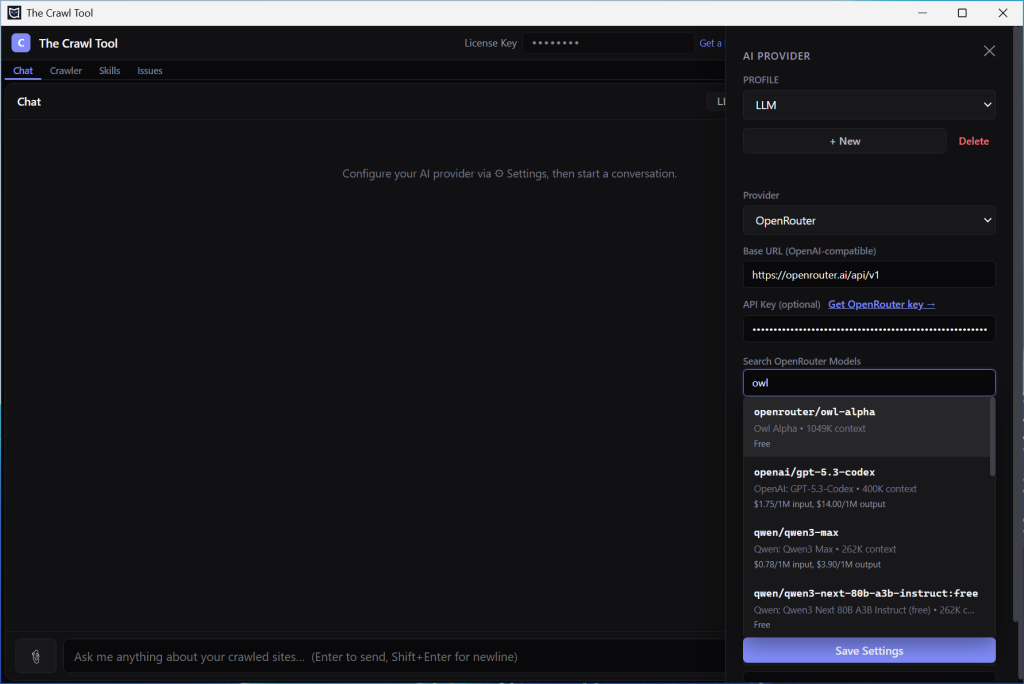
It’ll prefill in the settings for us. Click on Save Settings and close the AI provider window at the top right.
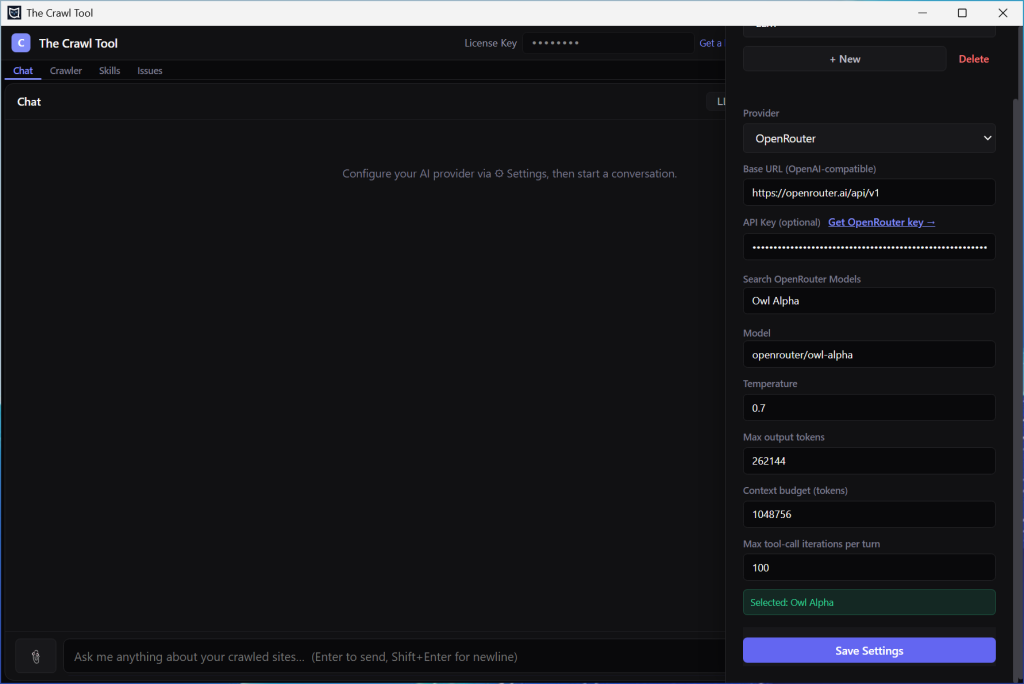
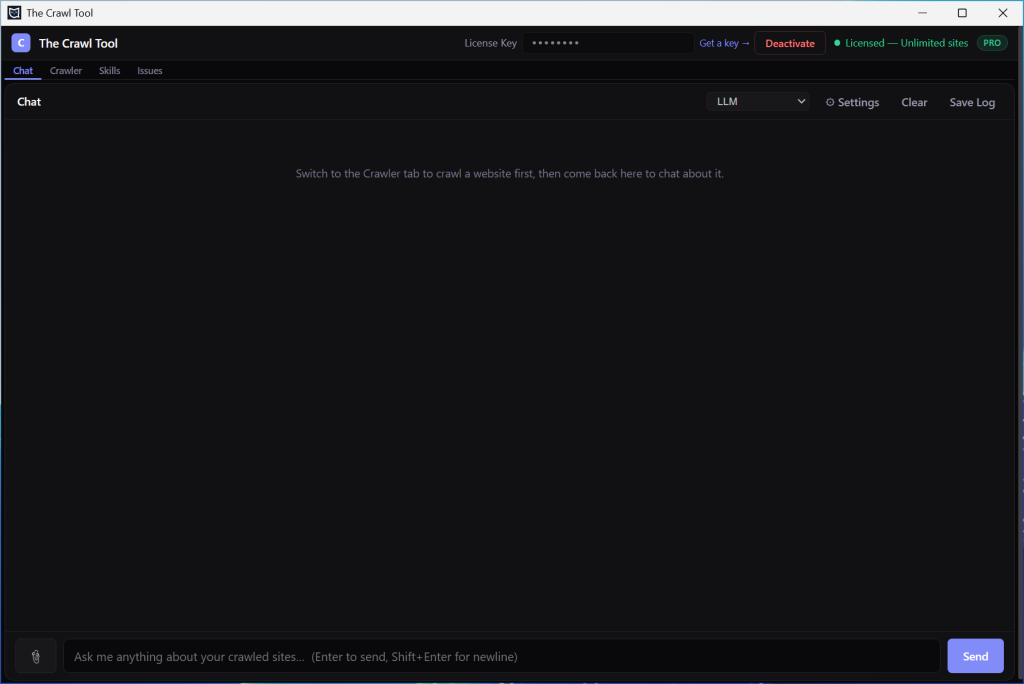
You’ll be back here. Note how the LLM profile is now selected at the top of the chat. If you make more profiles then you can switch them here.
And a Quick Test
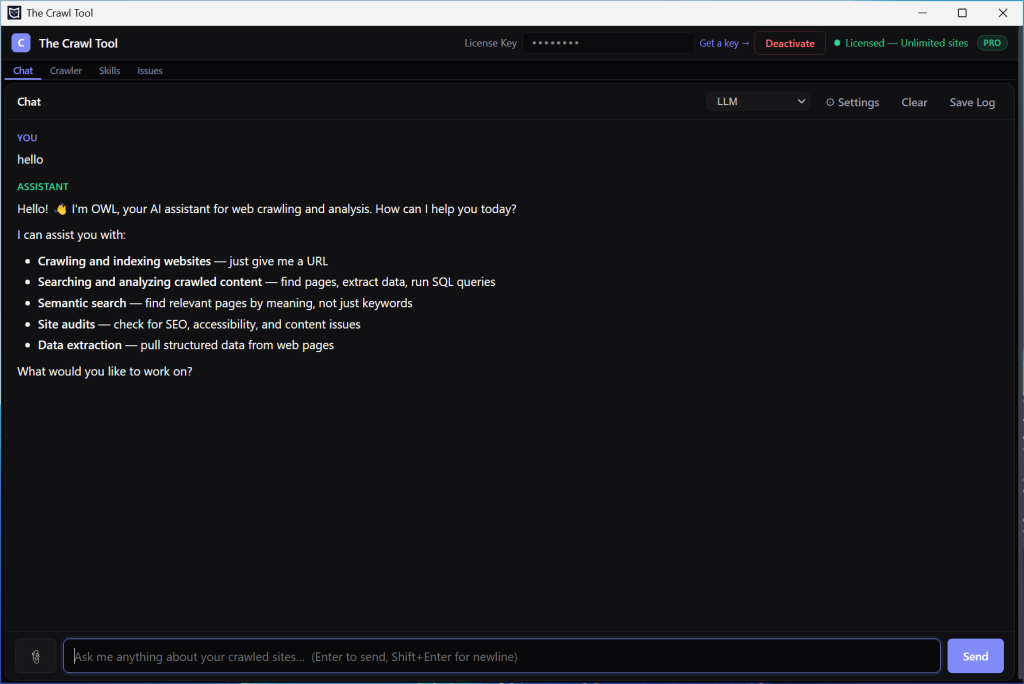
Regardless of whether you set up Local AI or OpenRouter, it’s time to give it a quick test. If everything is correct the AI should respond.
Probably next you’ll want to:
Run your first Crawl in The Crawl Tool
So that you have something to ask questions about!